Here's a step-by-step guide on how you can navigate the client portal to purchase support hours:
Navigating the client portal in WHMCS to buy support hours is a relatively straightforward process. Here's a step-by-step guide for clients on how to navigate the client portal to purchase support hours:
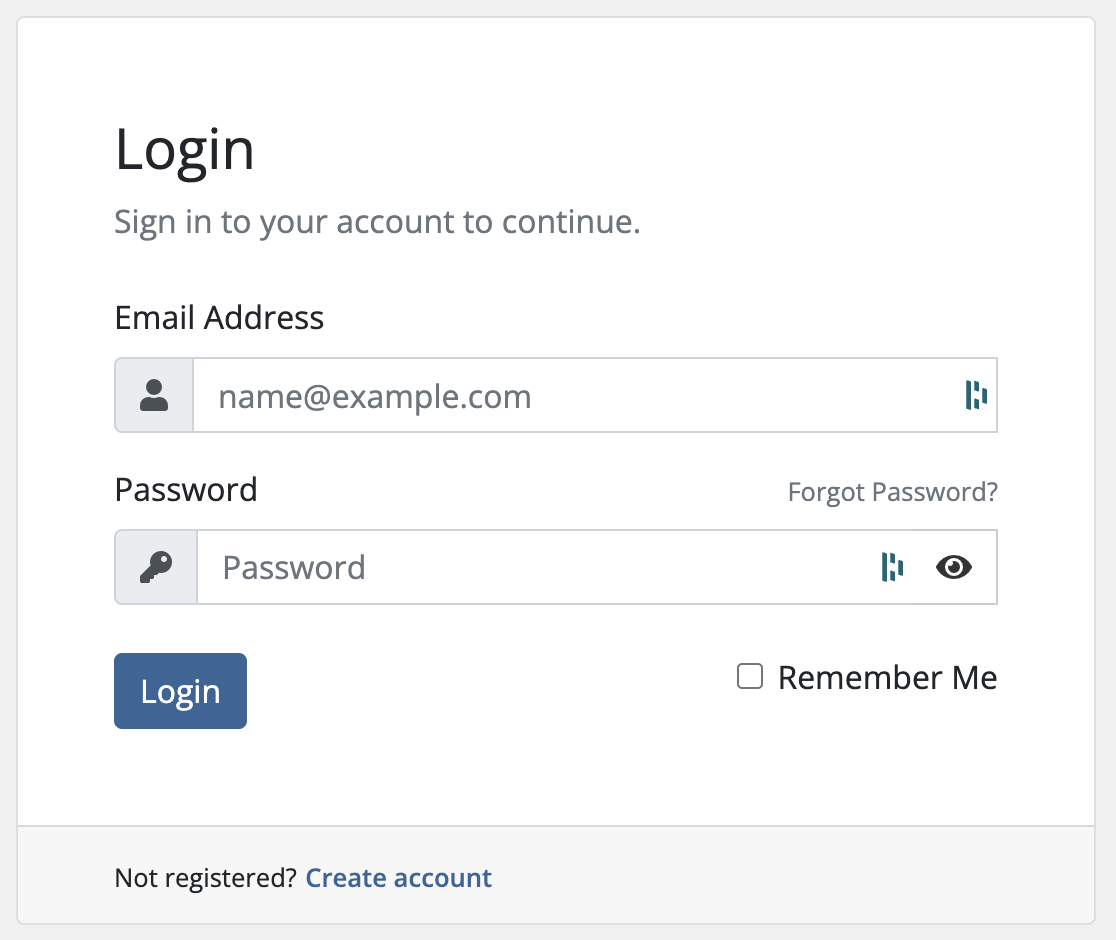
Step 1: Login to Client Portal
Step 2: Navigate to Services
- Once you are logged in, you should see your dashboard or home page
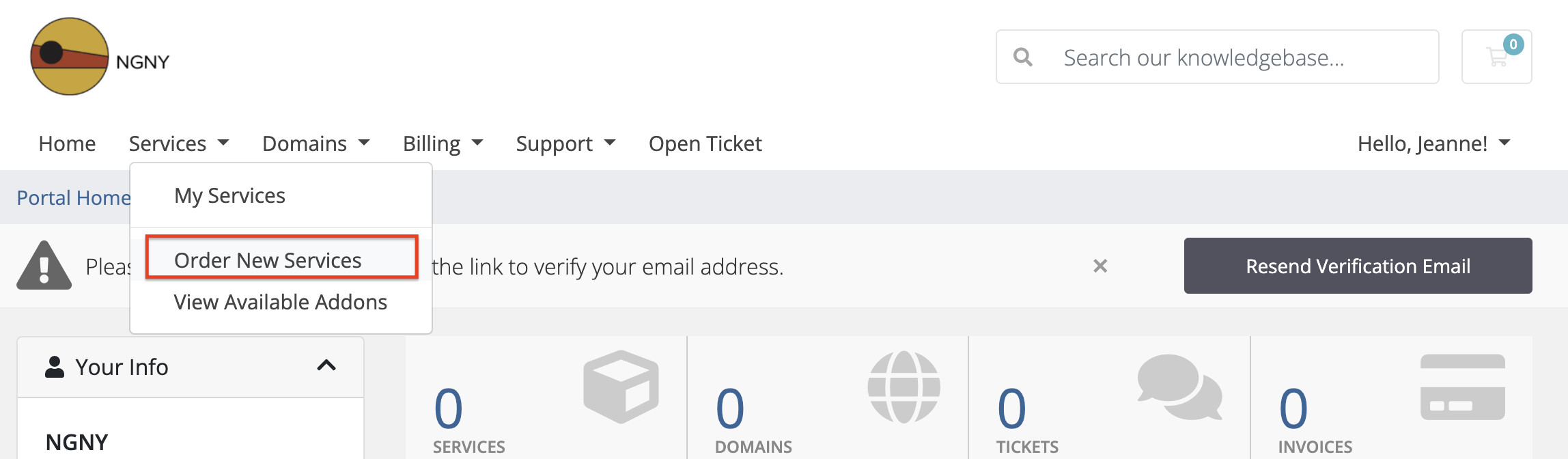
- Click on Services from the Menu bar beside Home then click on Order New Services
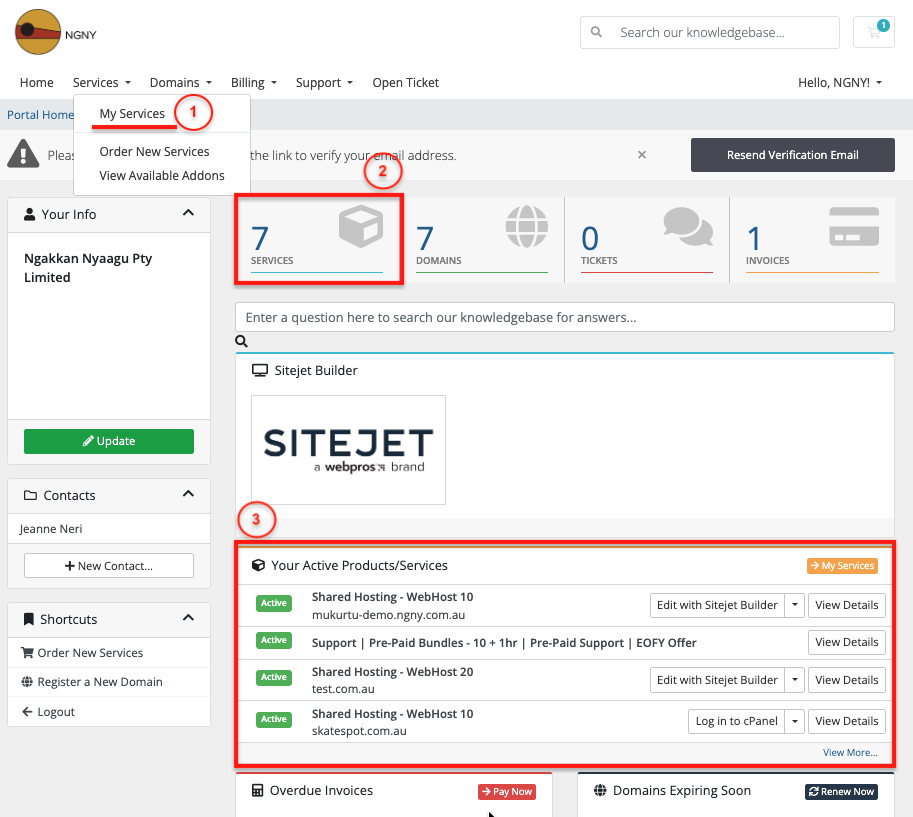
- If you want to check your Active Products/Services before you do your purchase, you can click on My Services or Services from the Dashboard
Step 3: View Available Products/Services:
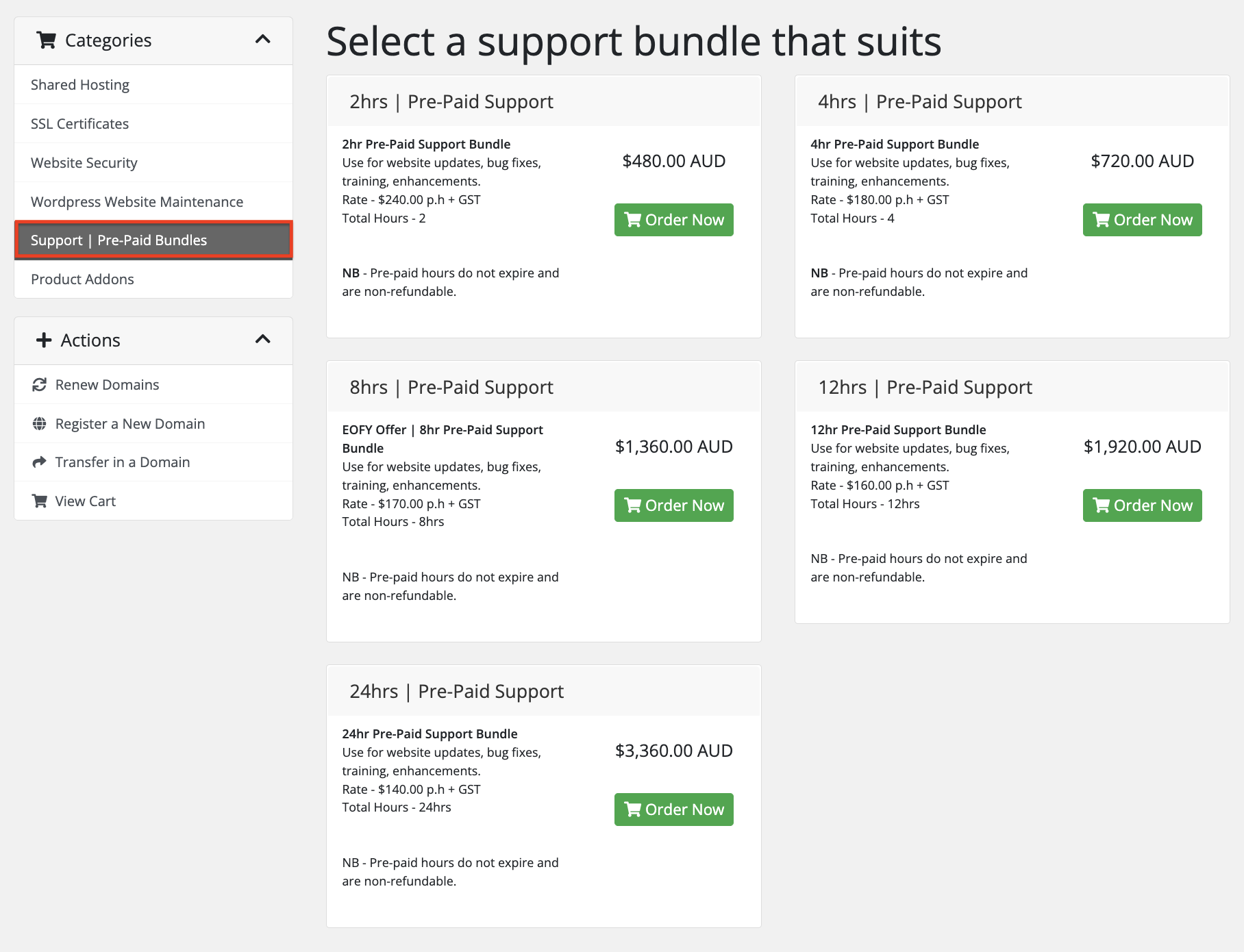
- You will be routed to the Shopping Cart page where you will see Support | Pre-Paid Bundles under the Categories
- On the right side of of the screen you will see the available support hours and prices you can choose from
- Click ‘Order Now’ once you found the best support hours for your needs
Step 4: Review your cart
- Once you’ve clicked the order now, you will be routed to the Review & Checkout page
- If everything looks correct, proceed to the checkout page by clicking ‘Checkout’
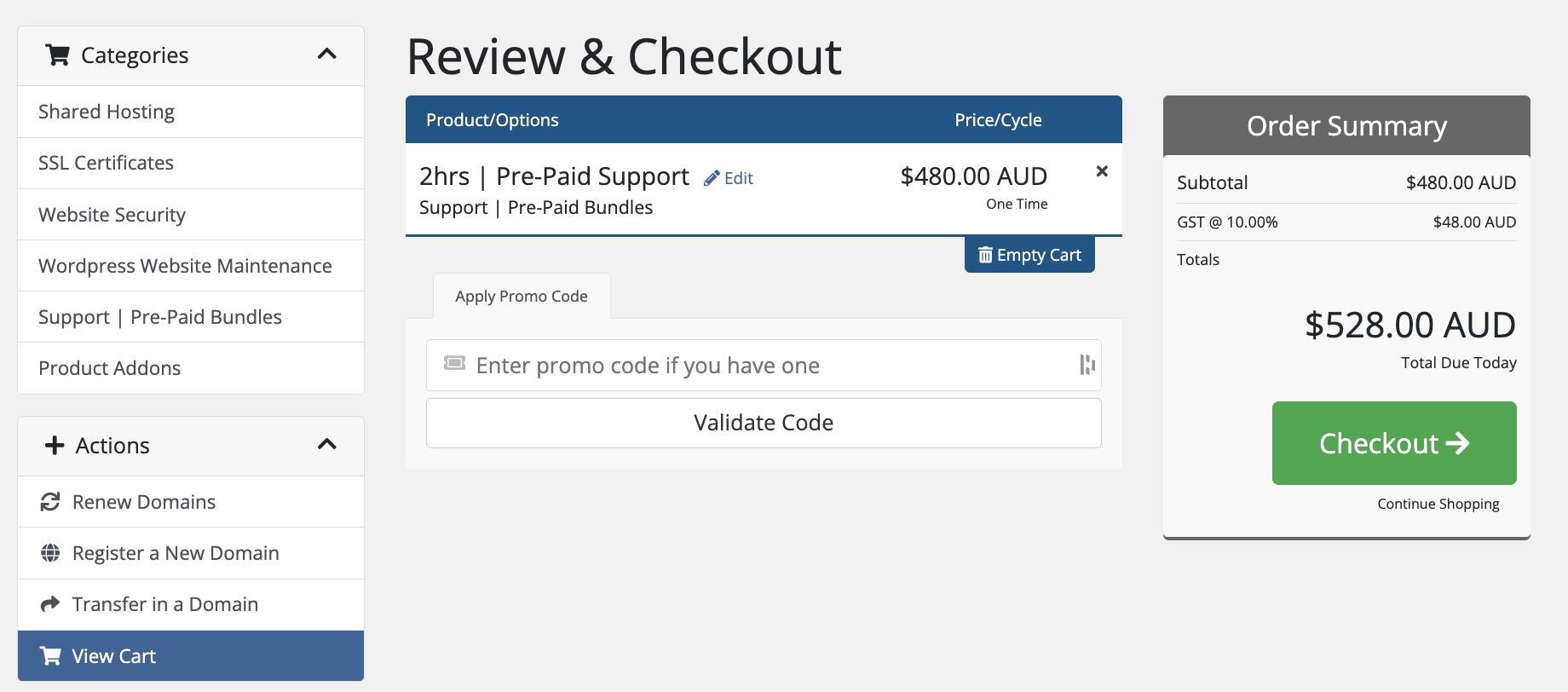
Step 5: Checkout page
- On the checkout page, you'll be prompted to enter your payment information.
- You have an option to choose from Credit Card, Debit Card, or Bank Transfer for method of payment
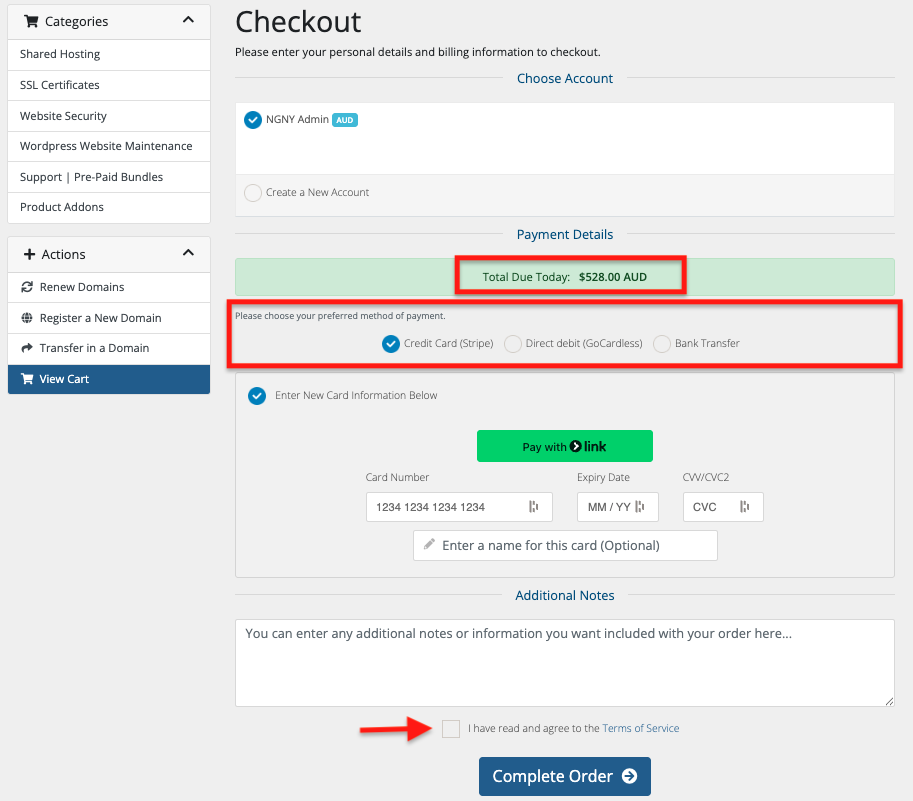
- Once the payment details are already completed, always make sure to tick on the ‘I have read and agree to the Terms of Service’ then click on Complete Order
Step 6: Order Confirmation:
- After the purchase is complete, you should receive a confirmation message or email that includes the details of your support hours purchase.
Step 7: Review your Active Products/Services
- Once the purchase is complete and paid, you will see the Support Hours you just purchased in Services immediately